Update your FanSync device
The latest firmware is version 1.16. Updating takes about five minutes. There are two ways to do it, and this page helps you pick the right one.
Which method should I use?
First find out which firmware version your device runs, then use this table. Method B (USB) works for every device, whatever its version or condition, so if you are ever unsure, use it.
| What your device shows | Use |
|---|---|
| Version 1.13 or newer, and you can open its web page | Method A: WiFi (use the Update page) |
| Version 1.6 to 1.10, and you can open its web page | Method A: WiFi (use the /update page; the steps are a little different) |
| Version 1.11 or 1.12, or older than 1.6 | Method B: USB |
| You cannot open the device's web page, it is not on your WiFi, or it will not start (“bricked”) | Method B: USB |
| You prefer to use a cable and a program | Method B: USB |
Not a Utah State device? Read this. Over WiFi, a device older than version 1.15 that belongs to a different school (for example Washington State) can come out of the update set up as a Utah State device, because older firmware did not keep its school on the device. For those devices, please use Method B (USB): it installs the right school for you. Devices already on version 1.15 or newer keep their school and can use either method.
What happens to my settings?
- WiFi update: your settings are kept (colors, sports, brightness, timezone, and so on).
- USB update: your WiFi connection is kept, but your other settings go back to their defaults and you will need to set them again from the Settings page.
Find your firmware version
Join the same WiFi network
Make sure your phone or computer is on the same WiFi network as your device, and that the device is plugged in and lit.
Open your device's web page
Type the address into your browser's address bar:
- Utah State:
http://aggiea.local - Washington State:
http://gocougs.localor, on older devices,http://wsucoug.local. If one address does not open, try the other.
Use
http://(nothttps://). If the.localaddress does not open (some phones and some Windows computers cannot find it), see “I can't open my device's page”.- Utah State:
Read the version
The firmware version is on the home page, under Device Status (newer devices) or at the bottom of the page (older devices). Newer devices also show it at the top of the Update page.
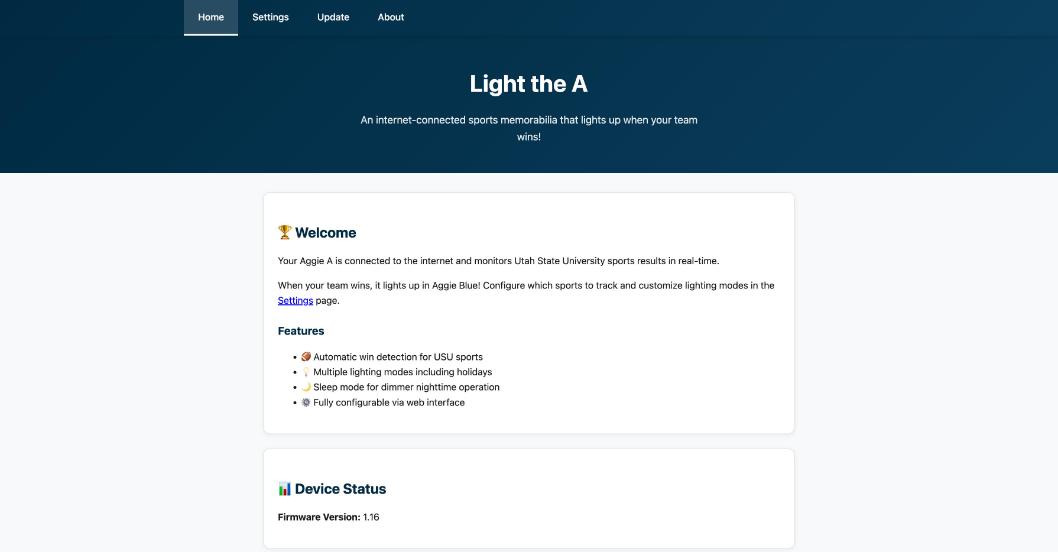
Newer devices: Device Status → Firmware Version. 
Older devices: the last line of the home page.
Method A: update over WiFi
You will download one small file (about 700 KB) and upload it to your device from its own web page. Nothing needs to be installed. Only the firmware file is needed: after the device restarts it fetches its own up-to-date web pages from the internet, so it must be connected to the internet.
Download the firmware file for your school
The file ends in
_firmware.bin. Save it somewhere you can find it (for example your Downloads folder). Do not unzip or rename it.Open your device's web page and go to the update page
Open your device's web page as described in Find your firmware version, then:
If your device shows version 1.13 or newer
Click Update in the menu at the top. You will see a box called Firmware Update.
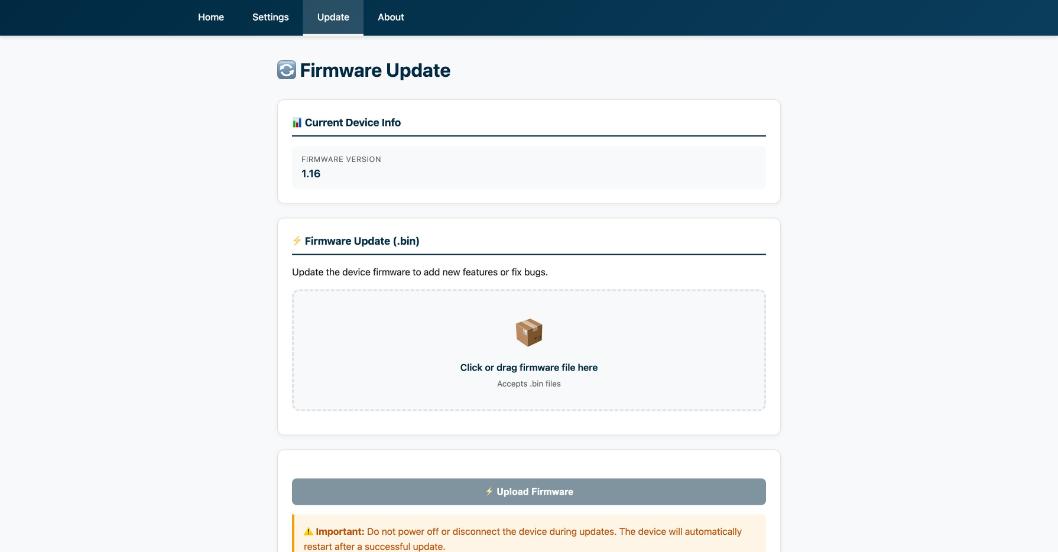
The Update page on a current device. Version 1.13 to 1.15 has two boxes on this page: Firmware Update and Filesystem Update. Use only the Firmware box. Leave the Filesystem box and the Upload Filesystem button alone.
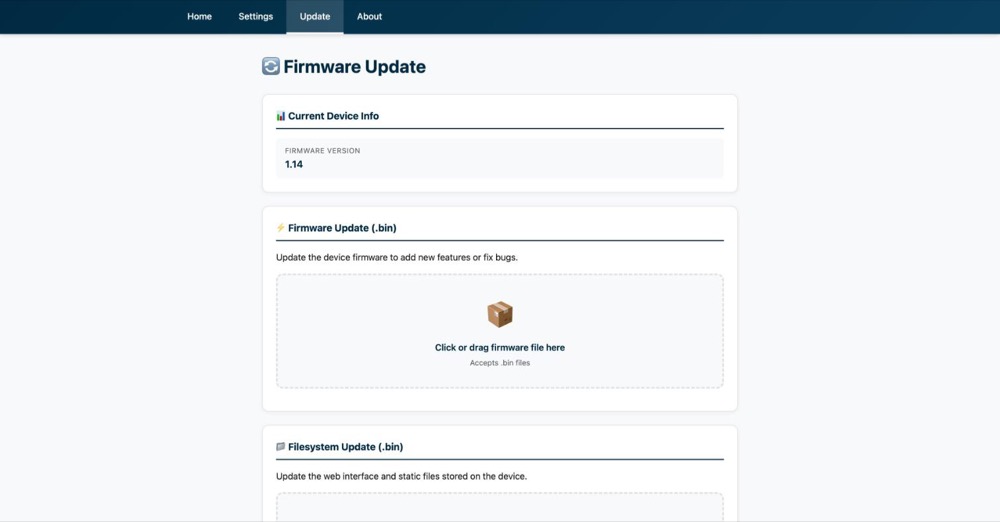
Version 1.13 to 1.15: the Firmware box is first. Ignore the Filesystem box below it. 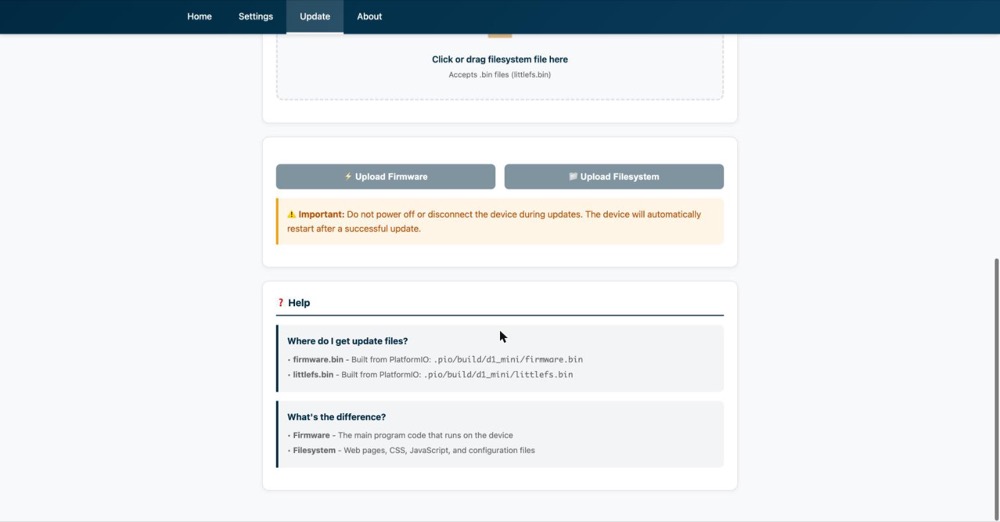
Click Upload Firmware only. If your device shows version 1.6 to 1.10
There is no Update link in the menu on these versions. Instead add
/updateto the end of the address, for examplehttp://aggiea.local/update. A page called ElegantOTA opens. Make sure Firmware is selected (not Filesystem).
Older devices: the ElegantOTA page at /update. Leave Firmware selected.Choose the file and upload it
Version 1.13 or newer
Click the dashed box (or drag the file onto it) and pick the
_firmware.binfile you downloaded. Its name appears in the box. Then click Upload Firmware.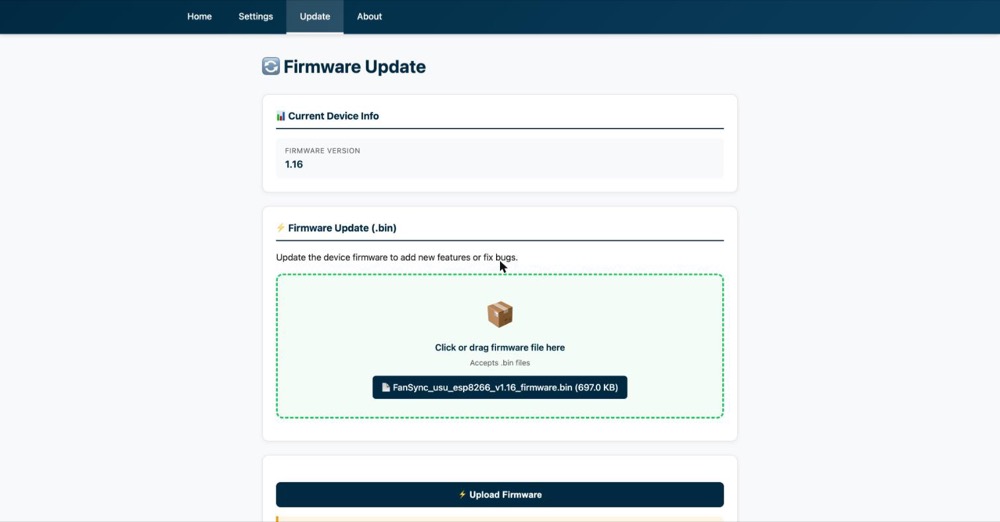
File chosen. Now click Upload Firmware. 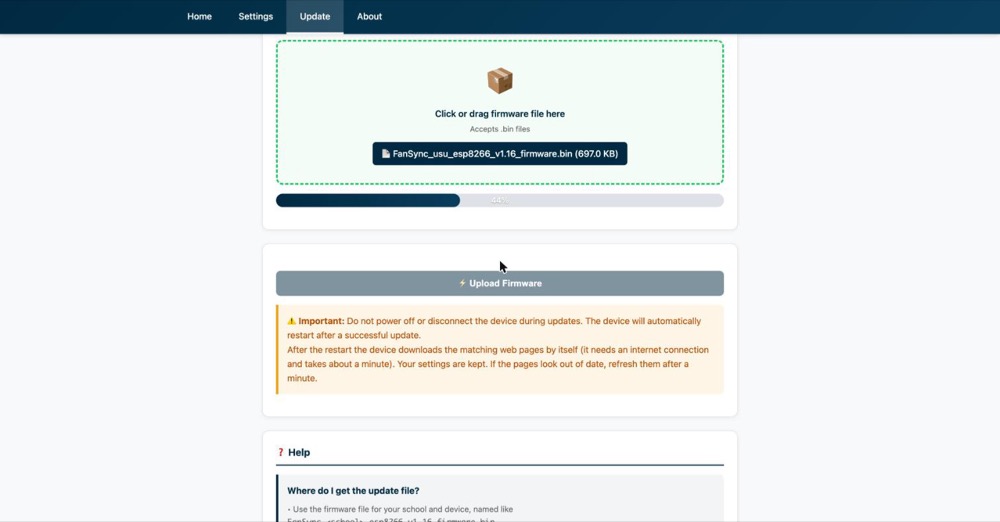
Uploading (about 15 seconds). Version 1.6 to 1.10
Click Choose File and pick the
_firmware.binfile. The upload starts by itself.
Uploading. 
“OTA Success” means the file arrived. Wait while the device restarts
Do not unplug the device. After the upload it restarts by itself and the LEDs blink.
- On version 1.13 and newer the page says “Reconnecting to device…” and reloads when the device is back (about half a minute).
- On the older ElegantOTA page, wait about 30 seconds.
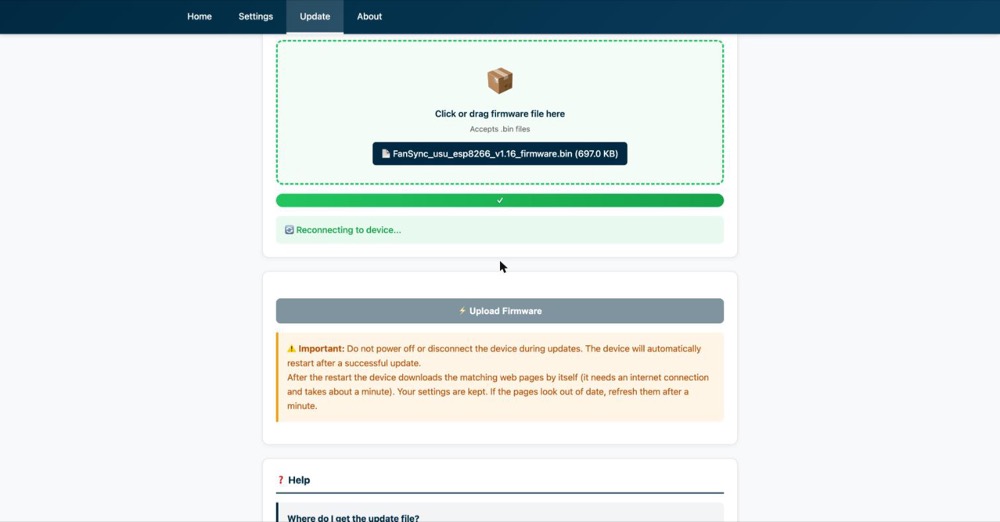
The upload finished; the device is restarting. Give it a minute, then refresh the page
Right after restarting, the device downloads its new web pages (about a minute). Then reload the page and check that the version now reads 1.16:
- Windows / Linux: hold Ctrl and press F5
- Mac: hold Cmd + Shift and press R
- Phone: close the tab and open the address again
That's it. Your settings and WiFi connection are unchanged.
If the WiFi update does not work
The upload says “Magic byte is not 0xE9” (or another error)
The file is not a firmware file. Check that it is the one ending in _firmware.bin (not a _littlefs.bin, _full.bin, .tar or .zip), that it was not renamed, and that the download finished (it should be about 700 KB). Then try again.
The page still looks old, or shows the old version, after the update
Browsers remember device pages for several minutes. Wait a minute, then do the hard refresh described in step 5. If the page still looks old after five minutes, the device could not download its new pages: check that your WiFi has internet access, then unplug the device for ten seconds and plug it back in. The device tries again every time it starts.
The device does not come back after five minutes
Unplug it for ten seconds and plug it in again. If it still does not return, use Method B (USB), which can always recover a device.
Power went out during the update
Normally the device keeps running its old firmware if an upload is interrupted, so try again. If it will not start, use Method B (USB).
Method B: update with the USB updater
The FanSync Device Updater is a small program for Windows, macOS and Linux. Nothing is installed and the firmware is built in. Use it for older devices, for a device that does not start or cannot be reached over WiFi, or whenever you prefer a cable.
This resets your settings. The updater installs a complete, fresh copy of the software. Your WiFi connection is kept, but your colors, selected sports, brightness, timezone and other settings return to their defaults. Set them again on the Settings page afterwards.
You will need: a computer (Windows, macOS or Linux), the device's USB cable (it must be a data cable, since some cables only charge), and about 60 MB of free space for the download and the unzipped program.
Download and unzip the updater
Unzip it (right-click → Extract All on Windows; double-click on a Mac). You will get a folder with three sub-folders,
macOS,WindowsandLinux, plus aREADME.txt. It includes firmware 1.16 for both Utah State and Washington State.Plug in your device
Connect the device's USB cable directly to your computer (not through a hub).
Open the updater for your computer
Mac
Open the
macOSfolder and double-click FanSync Updater.The first time, macOS may say it cannot check the program for malicious software. This is normal for programs that are not from the App Store.
- Click Done (not “Move to Trash”).
- Open the Apple menu → System Settings → Privacy & Security.
- Scroll down and click Open Anyway next to “FanSync Updater”, then confirm.
You only need to do this once.
Windows
Open the
Windowsfolder and double-click FanSync Updater.exe.If a blue “Windows protected your PC” window appears, click More info, then Run anyway. If your device does not show up, unplug it and plug it in again; Windows may need a minute to set up its USB driver.
Linux
Open a terminal in the
Linuxfolder and run./FanSync-Updater. If it says “permission denied”, runchmod +x FanSync-Updaterfirst.If the program cannot use the USB port or does not find your device:
- Run
sudo usermod -aG dialout $USER - Log out and back in (or restart), then run
groupsand check that it listsdialout. - To skip logging out, start the program with
sg dialout -c ./FanSync-Updater
Choose your school and click “Update my device”
The program finds your device by itself and shows “Found your device: ESP8266”. Choose your school from the list (the version that will be installed is shown underneath), then click Update my device.
Wait until it says your device has been updated
This takes about a minute (often less). Keep the device plugged in and do not close the program until it says “Your device has been updated!” The device restarts by itself.
Unplug the USB cable
Unplug the cable from your computer and power the device the way you normally do. It will reconnect to your WiFi by itself. Then continue with After the update.
If the USB update does not work
The program does not find my device
- Use the USB cable that came with your device, plugged straight into the computer (not through a hub). Some cables only charge and cannot carry data.
- Close any other program that uses the device (serial monitors, the Arduino IDE).
- Click Scan again in the program after plugging the device in.
- On Windows, unplug and re-plug the device and wait a minute for the driver to install.
- On Linux, see the
dialoutsteps above.
“Something went wrong” appears
The program explains what happened in plain words. The usual cause is a USB connection that is not reliable enough: try a different cable or port, plug directly into the computer, and run the update again. Clicking Advanced shows exactly what the program is doing.
If it keeps failing, click Save log when the program offers, then send us a message through our contact form. We will reply by email, and you can attach the log file to your reply.
After the update
- Open your device's web page again and check that the version reads 1.16.
- If you used the USB updater, open Settings and set your preferences again (colors, which sports to follow, brightness, sleep schedule, timezone).
- If your device had a different address before, use the one in Find your firmware version (Washington State devices now answer to
gocougs.local).
What's new in 1.16
- If the sports feed is briefly unavailable or returns an error page, a win that is already lit stays lit instead of switching off.
- The timezone is applied as soon as the device starts, so sleep mode follows your local time even right after a power outage.
- If the device starts while your router is still down (for example after a power outage), it no longer waits forever in its setup mode: it restarts and tries again.
- Your saved WiFi power setting is applied every time the device starts.
- If an upload on the Update page fails, the page now shows the error instead of appearing to hang.
- Updating is simpler: upload the firmware file and the device refreshes its own web pages, keeping your settings.
Questions and problems
I can't open my device's page
- Your phone or computer must be on the same WiFi network as the device.
- Type the address with
http://at the front (nothttps://). - If the
.localaddress does not work (this happens on some Android phones and some Windows computers), use the device's IP address instead. Open your router's list of connected devices. What the router calls the device varies: it is oftenESP-followed by six letters or numbers (for exampleESP-7823B4), but some routers show the manufacturer (“Espressif”) or the device's own name (AggieA/GoCougs). To spot it, look at the list with the device unplugged, plug it in, and see which entry appears. Type its address, likehttp://192.168.1.50. - Try the
.localaddress on a different device, such as a laptop.
Will I lose my WiFi connection?
No. Neither method touches the saved WiFi network.
My device can't find my WiFi after updating
The device opens its own setup network: AggieAP (Utah State) or GoCougsAP (Washington State). Connect your phone to it and a setup page opens where you choose your WiFi network and enter its password. (If your phone doesn't open the page by itself, browse to 192.168.4.1.) The setup network stays available for a few minutes, then the device restarts and tries again.
Which file is which?
FanSync_<school>_esp8266_v1.16_firmware.bin– the file for Method A (WiFi).FanSync-Device-Updater-….zip– the program for Method B (USB). It already contains everything it needs.
You never need the other files you may see on the server.
What does “bricked” mean?
A device that no longer starts properly: no lights, lights stuck, or no web page. The USB updater can normally bring such a device back.
Still stuck?
Send us a message through our contact form. If you used the USB updater and it saved a log file, attach the file when you reply to our email.
Downloads
| File | Use it for | Size |
|---|---|---|
| FanSync_ | Utah State, Method A (WiFi) | about 700 KB |
| FanSync_ | Washington State, Method A (WiFi) | about 700 KB |
| FanSync- | Method B (USB) for Windows, macOS and Linux; includes firmware 1.16 for both schools | about 22 MB |
Check your download (optional)
If you like, compare the file's SHA-256 checksum with the value below. On Mac or Linux: shasum -a 256 <file>. On Windows (PowerShell): Get-FileHash <file>.
Utah State and Washington State firmware (the same program runs on both; the school lives on the device):7e7cf6fe28cd5960dc621cf6f441f87de9b33f772db4caa1a651b7708963f4f0
Instructions for firmware 1.16 and USB Updater 1.0.1. Last updated October 2026.